What to include on your online visiting card
By Visiting Cards Online Editorial Team | Published | Guides
A section-by-section checklist for your online visiting card: the essentials, the extras worth adding, the settings to cheque and what to leave off.
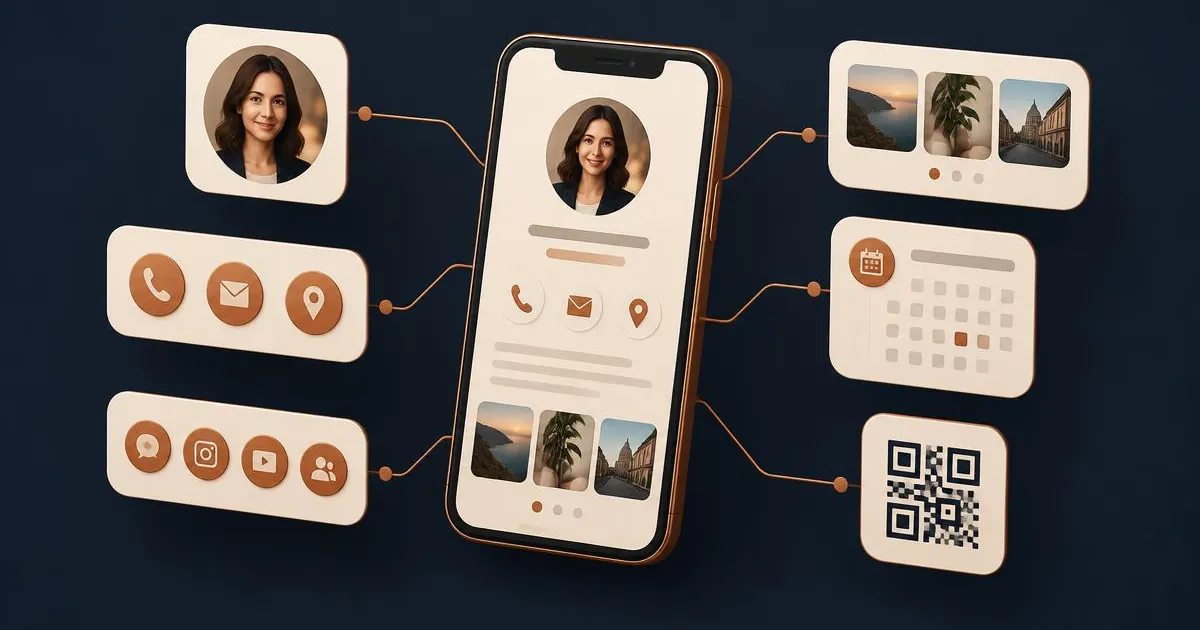
Your online visiting card should include your name, role, organisation, a clear photo or logo, at least two ways to contact you, a "Save contact" button and one main action such as booking a call. Add links, documents or a gallery only if they help someone decide to contact you. Leave off anything out of date.
Why a checklist helps
An online visiting card has more room than paper, which makes it tempting to add everything. In practice, the cards that work best are short. People open them on a phone, often straight after meeting you, and decide within seconds whether to save your details. This checklist is ordered by importance, so you can stop when the card does its job. For the full set-up process, see our step-by-step guide to creating an online visiting card.
1. The essentials
Identity
- Full name as people will search for it in their contacts.
- Job title or service in plain words: "Bookkeeper for small businesses" says more than "Financial solutions".
- Organisation, or "Independent" if you work for yourself.
- Photo or logo. A recent, well-lit head-and-shoulders photo helps people remember who they met. A logo suits shared team or company cards.
Contact methods
- Phone with the international dialling code if you work across borders.
- Email you actually cheque.
- Messaging such as WhatsApp, only if you are happy to be contacted there.
- A "Save contact" button so your details go straight into the other person's address book.
Two or three contact methods are enough. Six buttons that all do the same thing make the card harder to use.
2. One main action
Decide what you most want people to do after opening your card, and make that the most obvious button. Common choices:
- Book a call or appointment.
- Send an enquiry.
- View your portfolio or services.
- Leave a review, if you are asking existing clients.
Booking, enquiry and review tools are part of the Business Add-ons plan on the products we list; the Brand Presence plan covers profile details, links, documents, gallery and analytics. The full list is on the online visiting card page.
3. Links that add something
Add a link only when it tells someone something the card does not:
- Website — link to the page that matches the card's purpose, not just the home page.
- LinkedIn or the one social profile you keep up to date.
- Portfolio for creative and technical work.
Remove links to profiles you no longer use. An abandoned account undermines the impression the card is trying to create. If you are weighing up whether you need a website at all, read online visiting card vs personal website.
4. Trust content (optional)
These sections help a new contact decide to get in touch, but only if the content is real and current:
- A short bio of two or three sentences: who you help and how.
- Testimonials you have permission to use, with the person's name and role.
- Documents such as a brochure, rate card or capability statement, in PDF.
- A gallery of recent work.
Never add reviews or client logos you cannot back up. If you have none yet, leave the section out.
5. Settings to cheque before sharing
- Visibility and order — put the main action near the top and hide empty sections.
- Contact display — choose which details are shown publicly. You might show email but not a personal mobile.
- Password protection — useful for a card you only share with clients.
- Analytics — switch on view tracking if your plan includes it, so you can see whether people open the card.
6. Sharing methods
Once the content is right, set up the ways you will share it:
- The link itself, saved somewhere you can paste it quickly.
- A QR code on your phone's lock screen or in your photos, for in-person meetings.
- An email signature link, so every email you send carries it.
- A wallet pass, where the provider supports it.
- The link in your social bios.
What to leave off
- Your home address, unless clients visit you there.
- Out-of-date roles, numbers or offers.
- Long paragraphs. Link to a document or web page instead.
- Claims you cannot support, such as "award-winning" without the award.
Printable checklist
| Item | Must have | Optional |
|---|---|---|
| Name, title, organisation | Yes | |
| Photo or logo | Yes | |
| Two or three contact methods | Yes | |
| Save contact button | Yes | |
| One main action | Yes | |
| Website and one social profile | Yes | |
| Short bio | Yes | |
| Testimonials, documents, gallery | Yes | |
| Privacy and visibility settings checked | Yes |
Frequently asked questions
How much text should an online visiting card have?
As little as possible. A name, title, a two-sentence bio and clear buttons are usually enough. Move detail to documents or your website.
Should I include my personal mobile number?
Only if you are happy for anyone you share the card with to call it. Many people show a work number and keep the personal one private using the contact display settings.
Do I need a photo?
It is strongly recommended for personal cards, because it helps people remember who they met. A logo is fine for shared team or company cards.
How often should I update my card?
Whenever a detail changes, and cheque it properly every few months. Because the card is live, changes reach everyone who already has the link.
Can I have different cards for different audiences?
You can, but most people do better with one well-kept card. If you need a private version for clients, password protection is often simpler than a second card.
Next step
Ready to build yours? Start with the online visiting card, or choose the digital visiting card if you mostly share in person and the virtual visiting card if you mostly share by email and video call.