How to create an online visiting card: a step-by-step guide
By Visiting Cards Online Editorial Team | Published | Guides
Everything you need to create an online visiting card that people actually save: definitions, how it works, what to include, a checklist and common mistakes.
An online visiting card is a web page that holds your contact details, links and photo, which you share with a link or a QR code instead of handing over paper. The person you share it with opens it in their phone's browser and saves your contact in one step. You can edit it at any time, so it never goes out of date, and nobody needs to install an app.
What is an online visiting card?
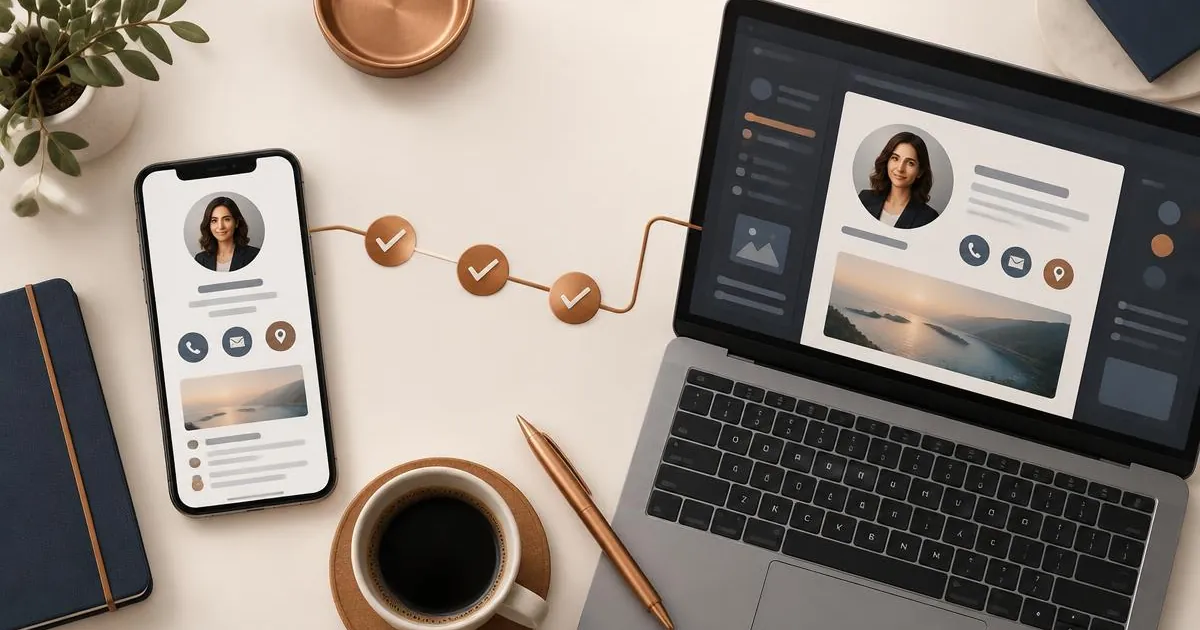
Think of it as a small personal website built for one job: making it easy for someone to contact you and remember who you are. A typical online visiting card has your name, role and company, a photo or logo, phone and email buttons, social links and a "Save contact" button that downloads your details straight into the other person's address book.
Because it lives online, it has three advantages paper cannot match. It can be shared with someone you have never met in person. It can be updated without reprinting. And it can hold far more than a paper card has room for — a portfolio, documents, a booking link or a short video.
How does an online visiting card work?
Behind every online visiting card there are three parts:
- The profile. A mobile-friendly page hosted by your provider, with a unique web address.
- The sharing methods. The link itself, a QR code that points to the link, and often extras such as an email-signature snippet or a wallet pass where supported.
- The dashboard. Where you sign in to edit the profile, change the layout and, on some plans, see how many people viewed it.
When you share the link or someone scans the QR code with their camera, their browser opens your profile. They press "Save contact" and your details are in their phone. Nothing is installed on either side.
Online, digital and virtual visiting cards compared
The three terms overlap, and many providers use them interchangeably. On this site we use them to describe three ways of using the same live profile:
| Type | Best for | How you mainly share it |
|---|---|---|
| Online visiting card | Reaching people remotely, before or after you meet | Link in a message, DM or bio |
| Digital visiting card | Meeting people face to face | QR code on your phone screen, or a link |
| Virtual visiting card | Email, video calls and hybrid teams | Email signature, call background, shared team links |
| Paper visiting card | Situations where paper is expected | Hand over in person only |
If you are not sure which to choose, start with the use you will rely on most. The underlying profile is the same, so you can share it all three ways regardless. Our comparison of online, digital and virtual visiting cards goes into more detail.
How to create an online visiting card, step by step
Step 1: Decide what the card is for
Write down the one action you most want people to take after opening your card. For a consultant it might be booking a call; for a salesperson, saving the contact; for a creative, viewing a portfolio. Everything else on the card should support that action.
Step 2: Choose a provider and plan
Look for a provider that needs no app for the recipient, lets you edit the profile whenever you like, keeps the same link permanently and is clear about price. Check whether the price is one-time or a subscription, and what happens to your card if you stop paying. On this site, both plans are a single payment: Brand Presence and Business Add-ons.
Step 3: Gather your content
- A clear, recent headshot or a logo, square and well lit
- Your name exactly as you want it saved in someone's contacts
- Role and company name
- One phone number and one email address you actually answer
- Two to four social or website links — the ones that matter, not all of them
- Optional: a booking link, a short bio of one or two sentences, a PDF or portfolio
Step 4: Build the profile
Sign in to your dashboard, pick a template and add your content in order of importance. Put the "Save contact" button and your primary action at the top. Keep the bio short; people skim on phones.
Step 5: Test it on two phones
Open your link on an iPhone and an Android phone if you can. Try every button. Save the contact and cheque how your name, photo and company appear in the address book. Scan the QR code from a screen and from a printout.
Step 6: Put the link and QR code everywhere
Add the link to your email signature, social bios and messaging profiles. Save the QR code to your phone's photos or lock screen so it is ready in a meeting. Add it to slides, proposals and video-call backgrounds. The more places it lives, the more it gets used.
Step 7: Keep it current
Set a reminder every three months to review your card. Update your role, refresh the photo and swap out links that no longer matter. Because the link never changes, everyone who already has it sees the update automatically.
Buying checklist
- No app required for the person receiving the card
- Unlimited edits after purchase
- A permanent link that does not change when you edit
- A downloadable QR code in a high-resolution format
- A "Save contact" button that works on iPhone and Android
- Clear pricing — one-time or subscription, stated up front
- Control over which sections are public
- A real support contact that replies
- A clear refund policy
For a longer version, see our visiting card checklist.
Mistakes to avoid
- Adding every link you own. Ten buttons dilute the one you care about. Pick the few that matter.
- A low-quality photo. The photo is what people remember; a blurry crop undoes the rest.
- Saving your name inconsistently. If your contact saves as "J. Smith Sales", people will not find you later. Use your name as people would search for it.
- Never testing the QR code. Check it scans from a phone screen at arm's length and in low light.
- Hiding the link. A card nobody can find does not get shared. Put it in your signature and bios on day one.
- Letting it go stale. An old job title is worse than none. Review it regularly.
Frequently asked questions
Do I need technical skills to create an online visiting card?
No. You choose a template and fill in your details in a dashboard, much like editing a social profile.
Does the person I share it with need an app?
No. The card is a web page, so it opens in the browser already on their phone.
Can I change my details after I have shared the card?
Yes. Edit the profile at any time; the link and QR code stay the same, so everyone sees the latest version.
Is an online visiting card the same as a vCard?
Not quite. A vCard is a contact file. An online visiting card is a full profile page that usually includes a button to download a vCard.
How do I share it in person?
Show the QR code on your phone screen for the other person to scan, or send the link by message while you are together.
How much does one cost here?
Prices are shown in your local currency on each product page and are a single, one-time payment.
Related guides
- Online visiting card vs personal website: which do you need? — a factual comparison of the two.
- What to include on your online visiting card — a section-by-section checklist.
- Online visiting cards for freelancers and consultants — practical use cases for independent professionals.
Ready to create yours?
If you mostly share remotely, start with the Online Visiting Card. If you meet people face to face, the Digital Visiting Card is set up for scanning in person. For email signatures and video calls, choose the Virtual Visiting Card.